On this page 7 sections
Think of your network switch as a small neighborhood. Each house has its own driveway, and every driveway leads to the same street out of town. The driveways are the regular ports where your PC, TV and console plug in. The street out of town is the uplink.
An uplink port connects a switch to the rest of the network: your router, another switch, or a switch in a different building. Every video stream, game download and backup from the devices on that switch travels along it. Some switches label it clearly, some tuck it away on the far right, and some, like a 26-port switch, give it a completely different shape. Here is what it does, the types you will run into, and whether you even need to use a special port.
What an uplink port does
A switch has two kinds of connections. Device ports, sometimes called access ports, each connect one device such as a computer, printer, camera or access point. The uplink is the single link that carries traffic from all of those devices up toward the router and the internet, which is where the name comes from.
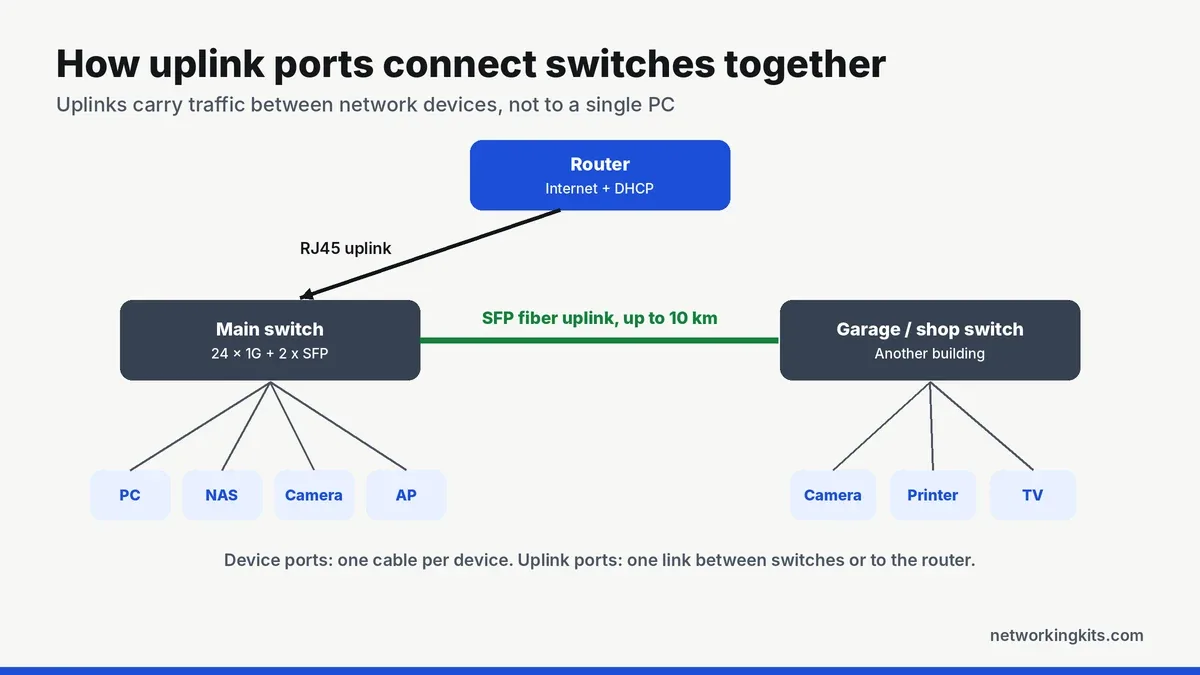
Because every device shares it, the uplink is the busiest road in the neighborhood. When ten people stream video at the same time, all of that traffic squeezes onto one street. That is why uplinks are often faster than the regular ports, or use fiber when the street has to run a long way.
Do you need a special port for the uplink?
Good news: on most modern switches, no. Nearly every modern gigabit port supports Auto MDI/MDIX, a fancy name for "figures it out on its own". It notices whether it is talking to a device or another switch and adjusts. Plug any port into your router with a normal Ethernet cable and, just like that, it is your uplink.
Older switches and hubs from the 1990s and early 2000s had a dedicated uplink port, or a button that switched one port between normal and uplink mode, because connecting two switches needed a crossover cable. You will only meet these on very old hardware today. Our explainer on T568A and T568B wiring covers the crossover cables those ports replaced.
Types of uplink ports
Switches built for bigger networks often have dedicated uplink slots in addition to the regular ports. There are three types you will see most often.
RJ45 copper uplink
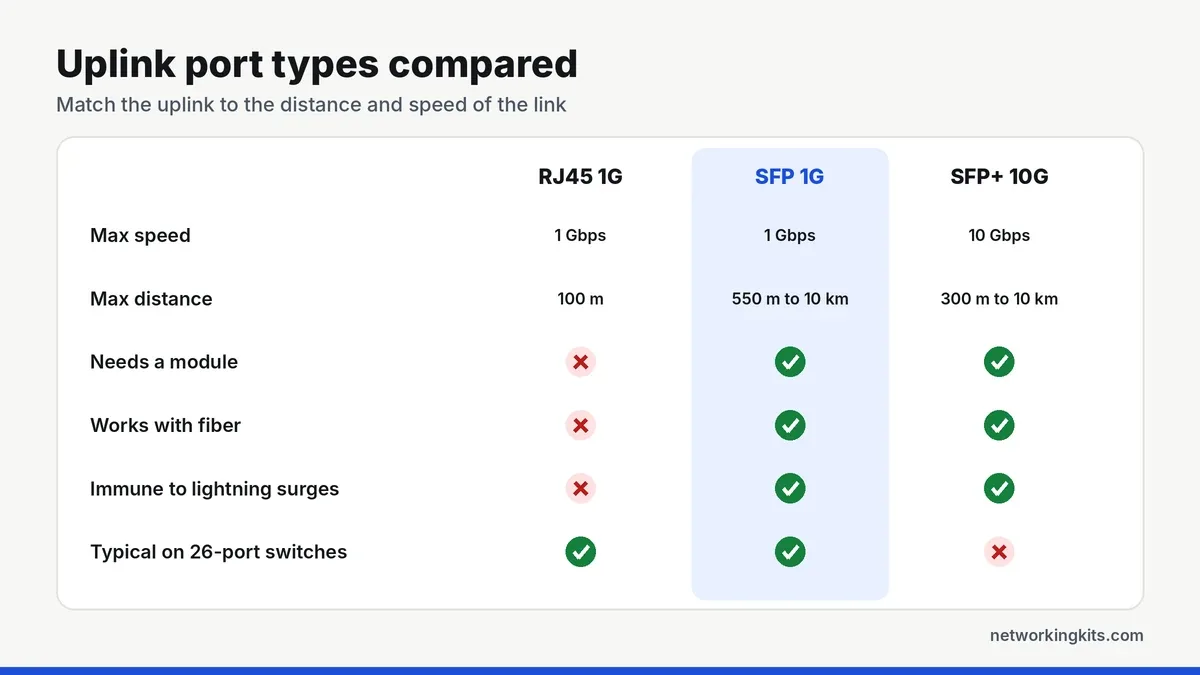
A regular Ethernet port used as an uplink. It runs at the same speed as the other ports, usually 1 Gbps, and reaches up to 100 meters on Cat5e or Cat6 cable. This is what most home networks use.
SFP uplink
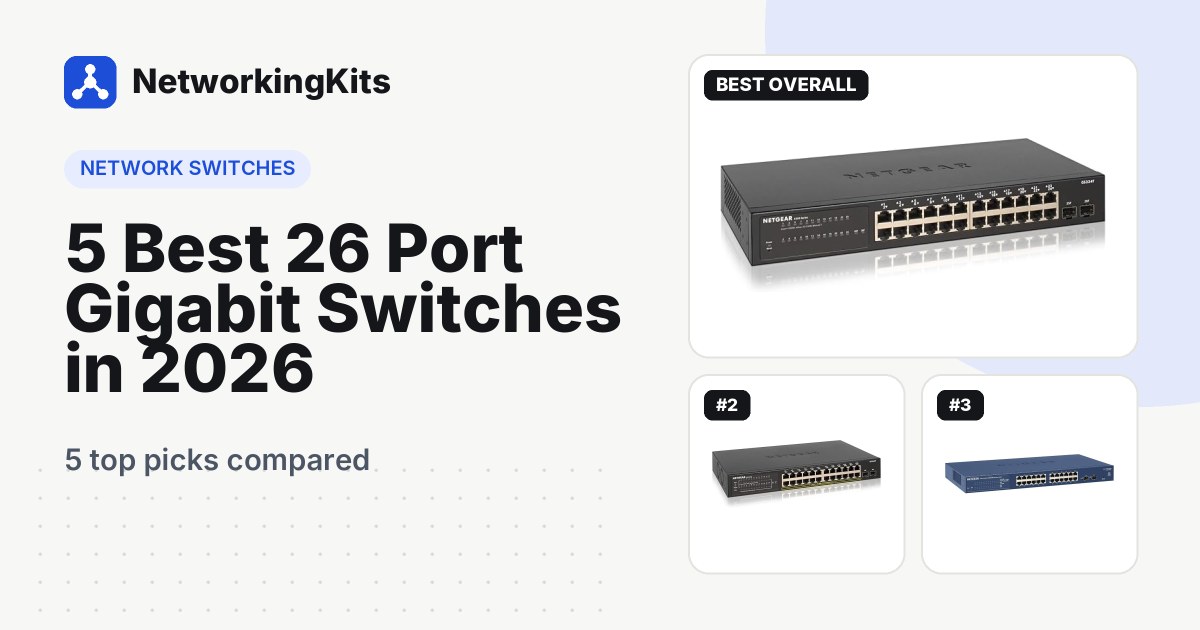
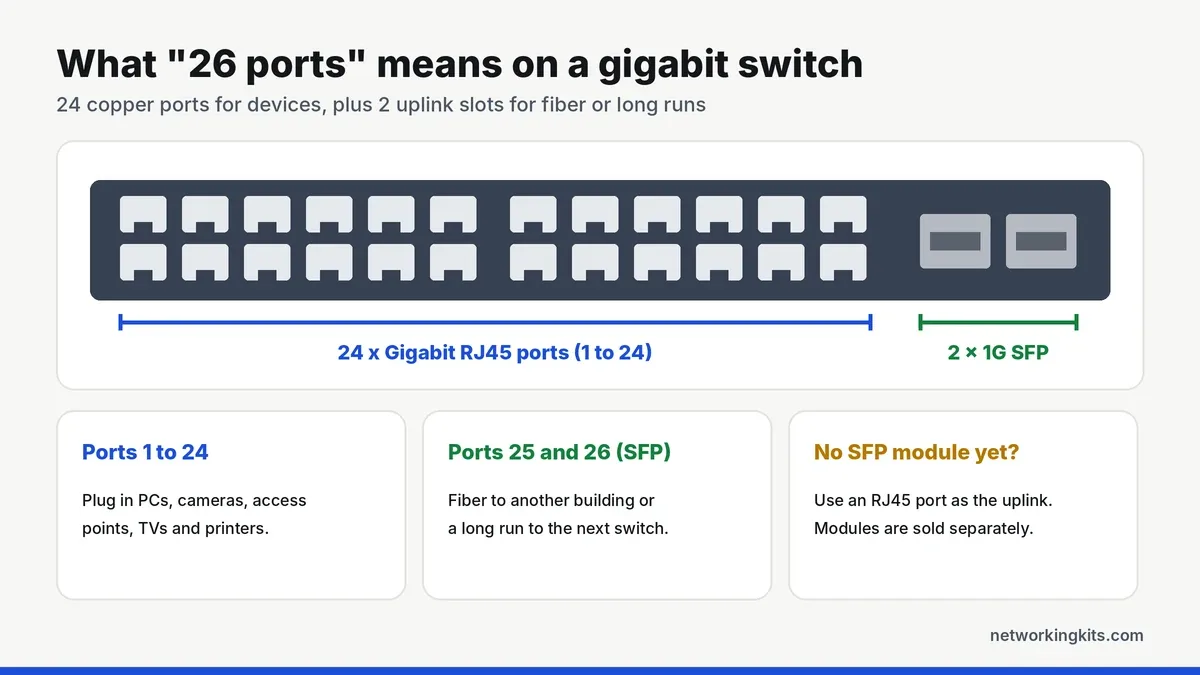
An SFP slot takes a small plug-in module. Fiber modules can reach 550 meters on multimode fiber or 10 kilometers on single-mode fiber, and fiber is immune to the electrical surges that can travel down long copper runs between buildings. A 26-port switch is simply a 24-port switch with two SFP uplink slots added. Our guide to SFP modules explains the module types.
SFP+ and multi-gig uplinks
Higher-end switches use SFP+ slots or 2.5G and 10G copper ports for uplinks. These let a gigabit switch connect to the router or a NAS at 10 Gbps, so the uplink never becomes the bottleneck even when every device is busy.
When the uplink becomes a bottleneck
A gigabit uplink can carry about 1 Gbps in each direction. For most homes, where the internet connection is 1 Gbps or slower, that is never a problem. It starts to matter when devices on the switch talk heavily to something on the other side of the uplink, like a NAS plugged into a different switch, or many cameras recording to a server elsewhere.
There are three common fixes. Put the busy devices on the same switch so their traffic never crosses the uplink. Use a faster uplink, such as 10G SFP+. Or bond two or more ports together with link aggregation so the uplink has more total bandwidth.
How to connect an uplink
Connecting a copper uplink takes a minute. Run an Ethernet cable from any LAN port on your router to any port on the switch, and the switch is online. For an SFP uplink, insert a module that matches your fiber type and speed into the slot, then connect the fiber cable. Both ends of the fiber link need matching modules.
- Use one uplink between two switches. Two cables between the same switches create a loop that can take down the network, unless the switches are set up for link aggregation or spanning tree.
- Keep the uplink on its own port. On a managed switch, label it in the interface so nobody unplugs it by mistake.
- Match the speeds. A 1G SFP module will not work in an SFP+ slot on some switches, and vice versa, so check compatibility.
Our walkthrough on setting up a network switch covers the rest of a first install.
The bottom line
An uplink port is the connection that links a switch to the router or to another switch. On modern switches, any port can be the uplink. Dedicated SFP uplink slots, like the two on a 26-port gigabit switch, add the option of fiber for long runs or another building. For most homes, a normal Ethernet port is all the uplink you need.
Frequently Asked Questions
What is the difference between an uplink port and a normal port?
A normal port connects one device, while an uplink port connects the switch to the router or another switch. On modern switches any port can be the uplink, but some switches add dedicated SFP uplink slots for fiber.
Can I connect a PC to an uplink port?
Yes, if it is an RJ45 uplink port. It works like any other port. SFP uplink slots need a module, and a copper RJ45 SFP module lets you plug in a normal Ethernet cable.
Is the uplink port faster?
Sometimes. On many switches it runs at the same speed as the other ports. Switches with SFP+ or multi-gig uplinks run them at 2.5 or 10 Gbps so the uplink does not become a bottleneck.
Do I need a crossover cable for an uplink?
Not on modern switches. Nearly all gigabit ports support Auto MDI/MDIX and adjust automatically, so a normal straight-through Ethernet cable works.

We are network installers and home lab builders who have spent over a decade crimping, punching down and testing cable. Every guide is built from spec sheets, verified buyer feedback and real-world install experience.
How we research and score products →