On this page 10 sections
You bought a network switch, opened the box and found a small metal case, a power adapter and not much else. No app, no setup disc, no instructions longer than a single page. That is not a mistake. Setting up a typical switch really does take about two minutes.
Still, a few details make the difference between a tidy, fast network and one with mystery slowdowns. This guide walks through where to put the switch, how to connect it, what the lights mean and how to fix the most common problems.
Before you start
You need three things: the switch with its power adapter, one Ethernet cable to connect the switch to your router, and a cable for each device you want to plug in. Any pure copper Cat5e or Cat6 cable works at gigabit speeds. If you are not sure which to buy, our guide to choosing between Cat5e and Cat6 explains the difference.
It also helps to know what a switch does and does not do. It adds wired ports to your network, but it does not replace your router, which still handles the internet connection, Wi-Fi and IP addresses. Our explainer on what a switch does vs a router explains how the two work together.
Step 1: Choose where to put the switch
Put the switch close to the devices you want to connect, not next to the router. If your TV, console and streaming box are in the living room, place the switch behind the TV stand and run one cable back to the router. One long cable is much easier to hide than four.
Give it some air. Most home switches are fanless and cool themselves through the case, so avoid stacking them on top of a hot router, console or cable box, and keep them out of sealed cabinets. Many switches have keyhole slots on the bottom, so you can mount them on a wall or under a desk to keep them out of the way.
Step 2: Connect the switch to your router
Plug one end of an Ethernet cable into any free LAN port on your router, and the other end into any port on the switch. On a basic unmanaged switch every port is the same, so it does not matter which one you use. Some switches label one port as the uplink, so use that if yours does.
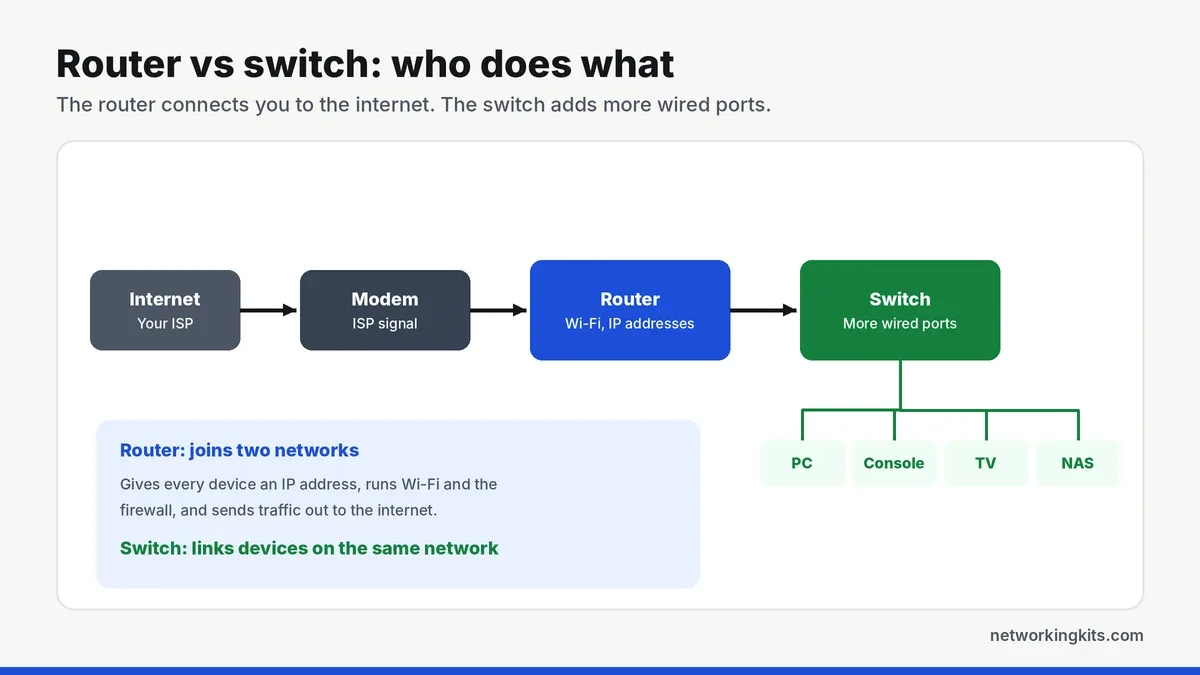
Do not plug the switch into the modem unless your modem is also your router. A plain modem only gives internet to one device, so the others on the switch would not connect.
Step 3: Power it on and connect your devices
Plug in the power adapter. The power light should come on straight away. Then connect your devices to the remaining ports. Within a few seconds each one gets an IP address from your router, exactly as if it were plugged into the router itself.
There is nothing to install and no settings to change. If you bought a smart managed switch, it still works this way out of the box. You can explore its settings later, which we cover in managed vs unmanaged switch.
Step 4: Check the lights
The port lights tell you whether each connection is working. On most home switches, a solid light means a device is connected, and a blinking light means data is moving. Many switches also show link speed with a color or a second light, so a port running at 10 or 100 Mbps instead of 1 Gbps stands out.
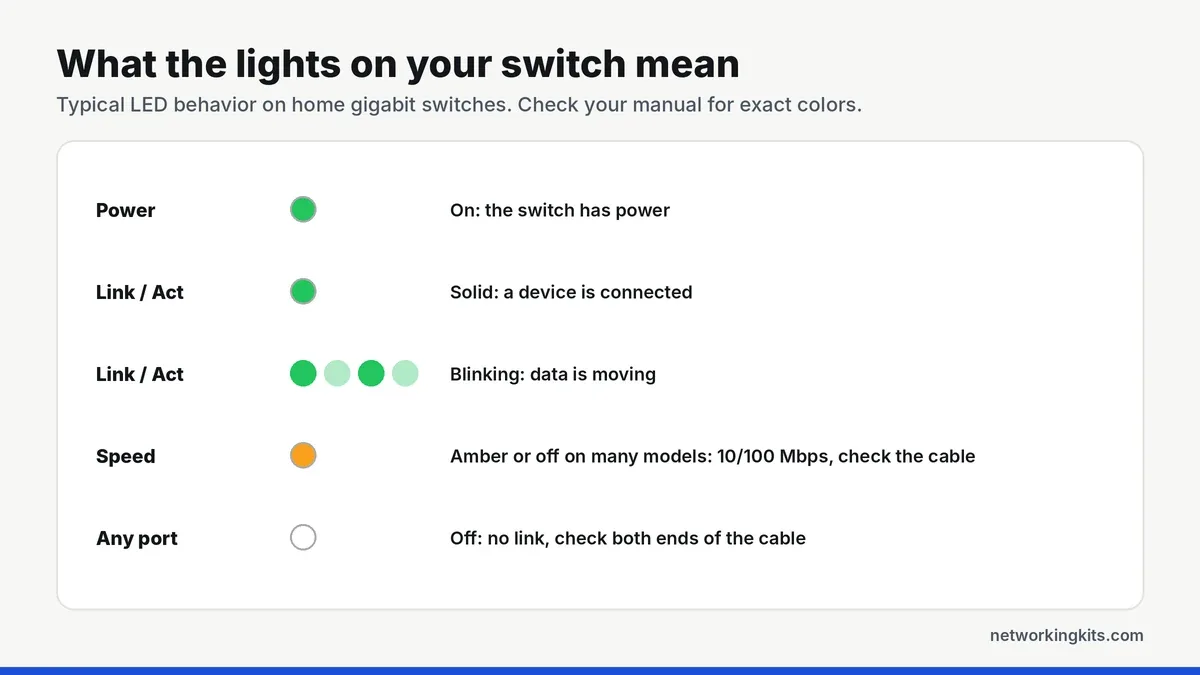
If a port shows the slower speed, the cable is usually the cause. A damaged cable, a poor crimp or an old Cat5 cable with a broken wire can drop a gigabit link to 100 Mbps, because gigabit needs all four pairs while 100 Mbps only uses two.
Step 5: Test your speed
Run a speed test on a wired device connected to the switch, then compare it with a test on a device plugged straight into the router. The results should be almost identical. If they are not, swap the cable between the router and the switch first, since every device on the switch shares that one link.
Adding more ports later
Ran out of ports again? You can connect a second switch to any free port on the first one. This is often called daisy chaining, and it works well in homes. The only rule is to connect the two switches with a single cable.
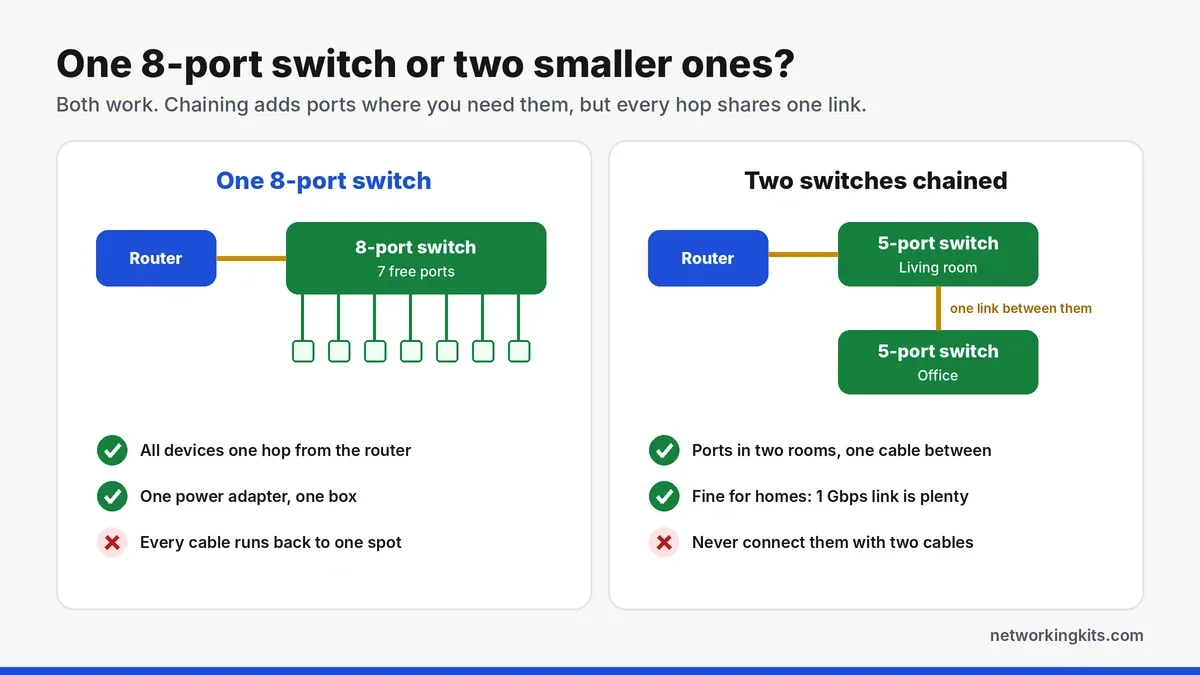
Connecting two switches with two cables, or plugging both ends of one cable into the same switch, creates a network loop. Traffic circles forever, and the whole network can slow to a crawl or stop. Smart switches with loop prevention will block it, but basic unmanaged switches usually cannot.
Troubleshooting common problems
- No lights at all: check the power adapter is fully plugged in, and try another outlet. Some buyers receive the wrong adapter in the box, so check the voltage matches the label on the switch.
- A device has no internet: make sure the switch is connected to a router LAN port, not a WAN or modem port. Restart the device so it requests a new IP address.
- Slow speeds on one port: replace the cable, then try a different port. A cable tester quickly shows a broken wire.
- The whole network slowed down after adding the switch: look for a loop, such as two cables between the same switches.
Label both ends of the cable that runs from the router to the switch. When something stops working months later, that is the first cable to check, and you will thank yourself for knowing which one it is.
Still choosing a switch? Our 5-port switch reviews and the best 8 port gigabit switches cover the most reliable models on Amazon.
Final thoughts
An unmanaged switch really is plug and play. Connect one port to a LAN port on your router, power it on and plug in your devices. If a light or speed looks wrong, the cable is the usual cause, so swap it before you blame the switch.
Frequently Asked Questions
Does a network switch need to be configured?
No. Unmanaged switches are plug and play. Connect one port to your router, plug in your devices and power it on. Smart managed switches also work straight away, with optional settings you can change later.
Which port on the switch connects to the router?
On most unmanaged switches, any port works, because all ports are the same. If one port is labeled uplink, use that one for the router connection.
Can I plug a switch directly into my modem?
Only if your modem is also a router, often called a gateway. A plain modem usually gives internet to one device, so the switch should connect to your router instead.
How many switches can I connect together?
In a home, you can chain a few switches without any problem. Each extra hop adds a tiny delay, and all devices on a chain share the link above them, so for many devices one bigger switch is the better choice.

We are network installers and home lab builders who have spent over a decade crimping, punching down and testing cable. Every guide is built from spec sheets, verified buyer feedback and real-world install experience.
How we research and score products →