On this page 7 sections
Count the gadgets on your home network right now. Laptops, phones, a smart TV, a doorbell camera, a few smart plugs, maybe a printer that has not had an update since it came out of the box. All of them can see each other, which means one hacked smart plug could, in theory, go looking for your files.
A VLAN, or virtual LAN, fixes that. It splits one physical network into separate networks that cannot talk to each other unless you say so, using the switch you already own. It sounds like a job for an IT department, but on a smart managed switch it takes about fifteen minutes. Grab a coffee, open your switch's web page, and let us build your first one together.
What a VLAN does
A VLAN groups switch ports into their own network. Devices in VLAN 20 can only reach other devices in VLAN 20, even if they are plugged into the same switch as devices in VLAN 10. To cross between VLANs, traffic has to go through a router or firewall, where you decide what is allowed.
The most popular home uses are keeping security cameras and smart home gadgets away from your computers, giving guests internet access without access to your files, and separating a home lab from the family network.
What you need
You need a managed or smart managed switch, since unmanaged switches cannot create VLANs. To let VLANs reach the internet and each other, you also need a router or firewall that supports VLANs, such as pfSense, OPNsense, UniFi, or many business and prosumer routers. Our guide to smart managed switches explains the difference, and our picks for the best 26 port gigabit switch are all VLAN-capable except the TRENDnet.
Tagged vs untagged ports
If VLANs have ever confused you, this is the part that makes everything click. Every port on the switch is set as either untagged or tagged for each VLAN, and once you know the difference, the rest is just clicking boxes.
Untagged ports (access ports)
An untagged port belongs to one VLAN, and the device plugged into it has no idea VLANs exist. Most of your ports will be untagged: a camera on port 9 is simply an untagged member of VLAN 20.
Tagged ports (trunk ports)
A tagged port carries several VLANs over one cable by adding a small tag to each frame, defined by the IEEE 802.1Q VLAN standard, so the device at the other end knows which VLAN it belongs to. You use tagged ports for links between switches, to the router, and to VLAN-aware access points that broadcast a different Wi-Fi network for each VLAN.
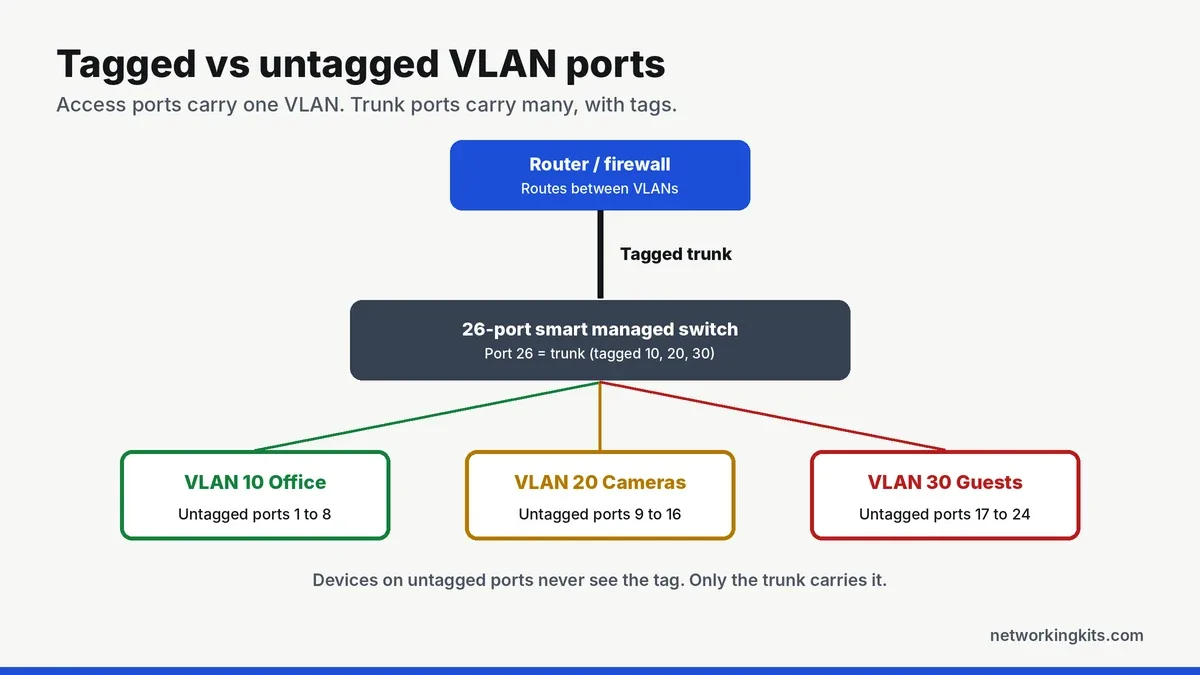
The PVID
Each port also has a PVID, the port VLAN ID. It tells the switch which VLAN to put untagged traffic into when it arrives on that port. For an access port, the PVID must match the VLAN it is an untagged member of. A wrong PVID is the most common reason a new VLAN does not work.
How to set up a VLAN step by step
These steps work on most smart managed switches, including NETGEAR, TP-Link and MokerLink models. The menu names vary slightly.
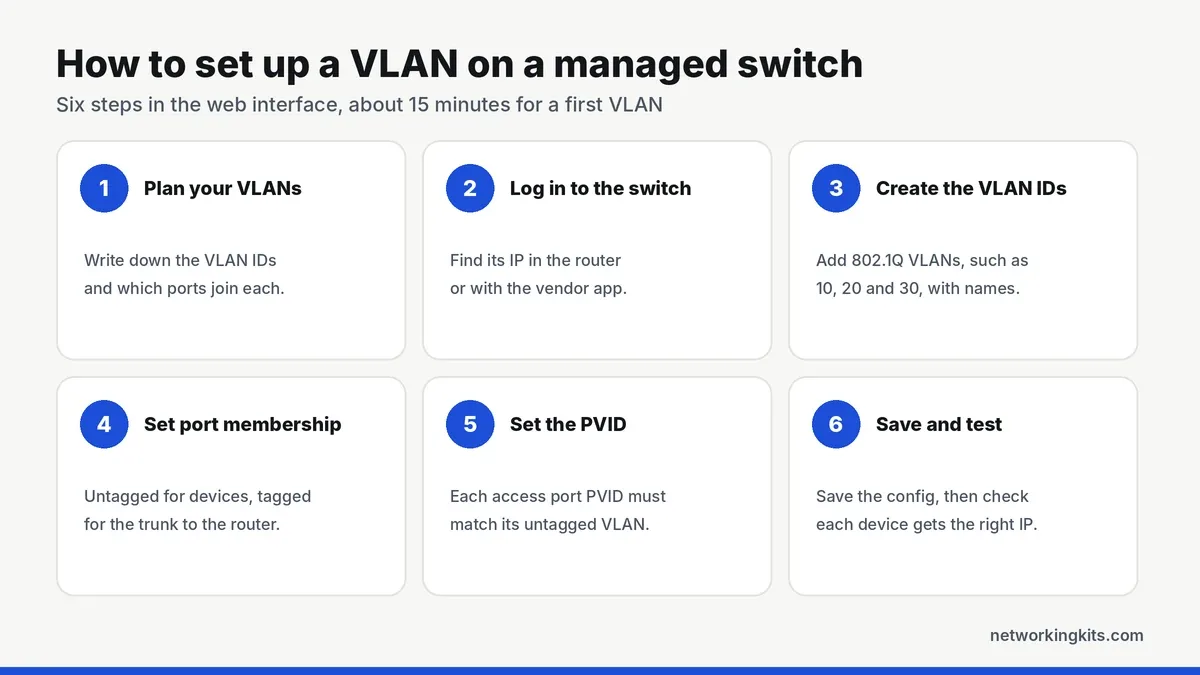
1. Plan your VLANs
Write down each VLAN ID, a name and the ports it will use. A simple plan: VLAN 10 for trusted devices on ports 1 to 8, VLAN 20 for cameras on ports 9 to 16, VLAN 30 for guests and smart home on ports 17 to 24, and port 26 as the trunk to the router. Leave VLAN 1, the default, alone for now.
2. Log in to the switch
Find the switch's IP address in your router's device list or with the vendor's discovery app, open it in a browser and log in. Change the default password if you have not already.
3. Create the VLAN IDs
Open the 802.1Q VLAN page, turn on advanced or 802.1Q mode if asked, and add VLANs 10, 20 and 30 with their names.
4. Set port membership
For each VLAN, mark its access ports as untagged members and the trunk port to the router as a tagged member. Remove the access ports from VLAN 1 so they only belong to one VLAN.
5. Set the PVIDs
On the PVID page, set ports 1 to 8 to 10, ports 9 to 16 to 20 and ports 17 to 24 to 30. Leave the trunk port's PVID as 1.
6. Configure the router, then save and test
On the router, create matching VLAN interfaces on the port connected to the switch trunk, each with its own subnet and DHCP range, and add firewall rules for what each VLAN may reach. Save the switch configuration so it survives a reboot, then plug a device into each VLAN and confirm it gets an address from the right subnet.
Keep one port as an untagged member of your management VLAN while you work, and do not change the port your own computer is plugged into until the end. It is easy to lock yourself out of the switch mid-setup.
Common VLAN mistakes
- Mismatched PVID. The port is an untagged member of VLAN 20 but its PVID is still 1, so devices get no address.
- Forgetting the trunk. If the link to the router is not a tagged member of a VLAN, that VLAN has no internet.
- Different IDs on each device. VLAN 20 on the switch must be VLAN 20 on the router and access points.
- Not saving. Many switches keep changes in memory until you click save, and lose them on the next power cut.
- Locking yourself out. Moving your own port to a new VLAN cuts your connection to the switch interface.
If you link a second switch, make the cable between them a tagged trunk for every VLAN you need on both sides. Our guide to switch uplinks covers how that link works.
The bottom line
A VLAN splits one switch into several separate networks, which is the easiest way to isolate cameras, smart home devices and guests. You need a smart managed switch and a VLAN-aware router. Create the VLAN IDs, make device ports untagged members with matching PVIDs, make the router link a tagged trunk, then save and test. Once the first VLAN works, adding more takes minutes.
Frequently Asked Questions
Can I set up a VLAN on an unmanaged switch?
No. Unmanaged switches have no settings, so they cannot create VLANs. You need a smart managed or fully managed switch.
What is the difference between a tagged and untagged port?
An untagged port belongs to one VLAN and connects a normal device. A tagged port carries several VLANs over one cable using 802.1Q tags and connects switches, routers and VLAN-aware access points.
Do I need a special router for VLANs?
To give VLANs internet access and control traffic between them, yes. The router must support VLAN interfaces. Without one, devices in different VLANs simply cannot reach each other or the internet.
Should I put my IoT devices on a separate VLAN?
It is a good idea. Smart plugs, cameras and TVs rarely get security updates, and a separate VLAN keeps a compromised device from reaching your computers and files.

We are network installers and home lab builders who have spent over a decade crimping, punching down and testing cable. Every guide is built from spec sheets, verified buyer feedback and real-world install experience.
How we research and score products →