On this page 9 sections
Open the network closet in almost any office and you will see the same thing: a neat row of numbered ports, short colorful cables and a switch underneath. That row of ports is a patch panel, and it is the reason the closet looks organized instead of like a bird's nest.
Patch panels are not just for businesses. If you are wiring Ethernet through the walls of your home, one can save you hours of frustration. This guide explains what a patch panel is, the different types, when you actually need one and how to install it.
What is a patch panel?
A patch panel is a panel of RJ45 ports that acts as a fixed meeting point for all the network cables running through your walls. Each cable from a wall jack, a camera or an access point ends at the back of the panel. On the front, short patch cords connect each panel port to a port on your switch.
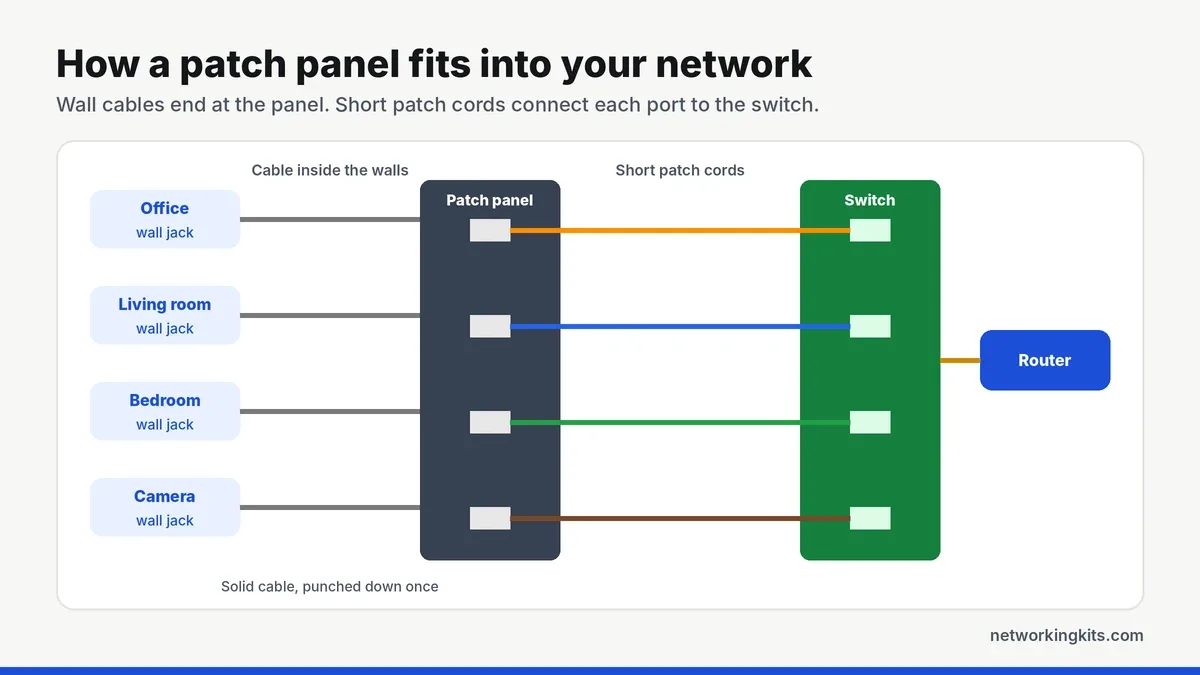
A patch panel does not process or switch any data. It is completely passive, just a tidy, labeled set of connections. All the networking still happens in your switch and router.
Why use a patch panel instead of plugging cables straight into the switch?
In-wall cable is usually solid copper, which carries signals well over long distances but does not like being bent, moved or crimped into plugs over and over. A patch panel lets you terminate that cable once and never touch it again. Everything you plug and unplug day to day uses flexible stranded patch cords instead.
- Protects the wiring in your walls: if a plug breaks, you replace a cheap patch cord, not a cable inside the wall.
- Makes changes easy: want the office jack on a different switch or VLAN? Just move one short cord.
- Keeps things organized: numbered, labeled ports show exactly which room each cable serves.
- Makes troubleshooting faster: you can test each run from the panel without pulling cables out of the wall.
Types of patch panels
There are two main styles, and both work equally well at gigabit and 10 gigabit speeds when they are rated for your cable category.
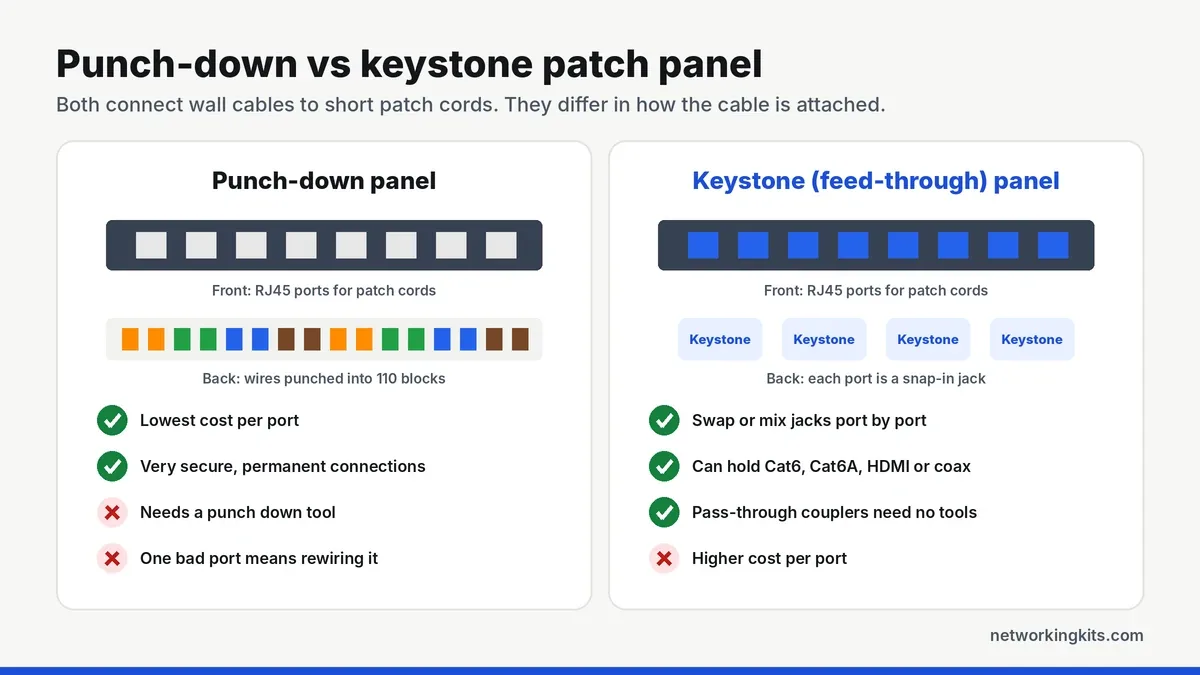
Punch-down panels have 110-style blocks on the back. You press each wire into its slot with a punch down tool, which cuts off the excess at the same time. They are the cheapest per port and make very secure connections.
Keystone panels are empty frames that hold snap-in keystone jacks. You terminate each cable into a jack, or use pass-through couplers that need no tools at all, then snap the jack into the panel. They cost a little more, but you can swap a single port or mix Cat6, Cat6A, HDMI and coax jacks in the same panel.
Sizes and ratings
Most patch panels fit a standard 19-inch rack. The most common sizes are 12, 24 and 48 ports, with 24 ports usually taking one rack unit (1U, 1.75 inches) of height. For homes without a rack, small wall-mount panels and brackets are available too.
Match the panel's category to your cable. A Cat6 panel for Cat6 cable, a Cat6A panel for Cat6A. If you use shielded cable, you also need a shielded panel that is properly grounded. Our explainer on Cat6 vs Cat5e and when Cat6A makes sense explain which cable to choose.
Do you need a patch panel?
You probably need one if you have six or more cables running through walls to a central spot, you are wiring a new home or office, or you are installing a network rack or wall cabinet.
You can skip it if you only have one or two in-wall runs, or all your cables are ordinary patch cables plugged straight into a switch on a desk. In that case, a simple wall jack at each end is enough.
How to install a patch panel
- Mount the panel in your rack or wall bracket, usually directly above the switch so patch cords stay short.
- Plan and label. Decide which room goes to which port, and label both the cable and the panel.
- Strip the cable about 2 inches (50 mm) back, keeping the twists in each pair as close to the termination as possible.
- Punch down the wires following the color code printed on the panel. Use the same wiring standard, T568A or T568B, as the wall jacks at the other end. Our explainer on T568B and T568A color codes explains the difference.
- Dress the cables with a cable support bar or Velcro ties to relieve strain on the terminations.
- Test every run from the panel to the wall jack with a cable tester before connecting it to the switch.
- Patch to the switch with short patch cords, ideally 1 or 2 feet long.
Keep about half an inch (13 mm) or less of untwisted wire at each termination. Untwisting pairs too far is the most common reason a run fails a Cat6 test, even when every wire is in the right place.
Tools you will need
For a punch-down panel you need a punch down tool with a 110 blade, a cable stripper and a cable tester. Most of the complete cabling kits we compared include all three. For long runs or new installs, a qualification or certification tester can confirm each run meets its rated speed, and we compare the options in the best Fluke network cable testers.
Choosing the switch to go with it? Our 16-port switch reviews include two rackmount models that line up neatly under a patch panel.
Bottom line
A patch panel is a neat, passive end point for your in-wall cables. It protects the solid wire, makes changes easy and keeps a rack tidy. If you have only two or three runs, you can skip it, but once you have more, it is worth the small cost.
Frequently Asked Questions
Does a patch panel slow down the network?
No. A patch panel rated for your cable category adds no noticeable loss or delay. It is a passive connection point, and Ethernet standards already allow for patch panels in every channel.
Is a patch panel the same as a switch?
No. A patch panel only organizes cable connections and does not move any data. A switch actively forwards data between devices. You use them together, with patch cords linking each panel port to a switch port.
Should a patch panel use T568A or T568B?
Use the same standard as the wall jacks at the other end of each cable. Most panels are printed with both color codes. T568B is the most common choice in the US.
Can I use a patch panel without a rack?
Yes. Wall-mount brackets and small wall-mount patch panels let you mount a panel directly on a wall or in a closet without a full network rack.

We are network installers and home lab builders who have spent over a decade crimping, punching down and testing cable. Every guide is built from spec sheets, verified buyer feedback and real-world install experience.
How we research and score products →